> For the complete documentation index, see [llms.txt](https://docs.spacetoken.tech/llms.txt). Markdown versions of documentation pages are available by appending `.md` to page URLs; this page is available as [Markdown](https://docs.spacetoken.tech/tutorials/how-to-withdraw-space-from-final-autoclaim.md).

# How to withdraw SPACE from Final Autoclaim?

In this step-by-step guide, you will learn how to withdraw the Space Tokens held on your Final Autoclaim account to your own Web3 wallet.

### Before you start: get a Web3 wallet address

SPACE is compatible with any Web3 wallet. These are the wallets that support it:

* [Rabby](https://rabby.io/rabby-points?code=SPACETOKEN)
* [Trust Wallet](https://trustwallet.com/)
* [MetaMask](https://metamask.io/)

We fully recommend using **Rabby**, since that's the most secure and the user experience is great. All other EVM-compatible wallets can be used.

{% hint style="info" %}
New to Rabby? Watch [this video](https://www.youtube.com/watch?v=o93k_kg5kO4), or follow [this tutorial](https://www.coingecko.com/learn/how-to-use-rabby-wallet).
{% endhint %}

### 1. Link your SPACE address on Final Autoclaim

{% hint style="info" %}
If your SPACE address is already linked on Final Autoclaim, go straight to step 2.
{% endhint %}

#### A. Copy your deposit address

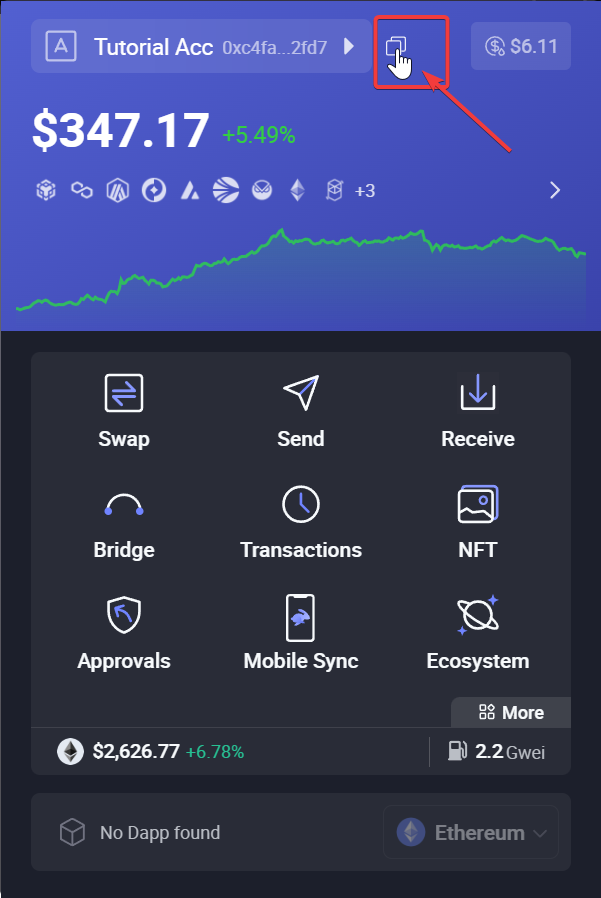
Open your wallet and copy your deposit address.

<figure><img src="https://180242877-files.gitbook.io/~/files/v0/b/gitbook-x-prod.appspot.com/o/spaces%2FJvtfR7L0PJEmCLLFDuzx%2Fuploads%2FDIsdctF4EJhBqT3alMNQ%2Fwithdraw-rabby-copy-address.png?alt=media" alt="Copying the deposit address in Rabby" width="300"><figcaption><p>In Rabby, click here to copy your address.</p></figcaption></figure>

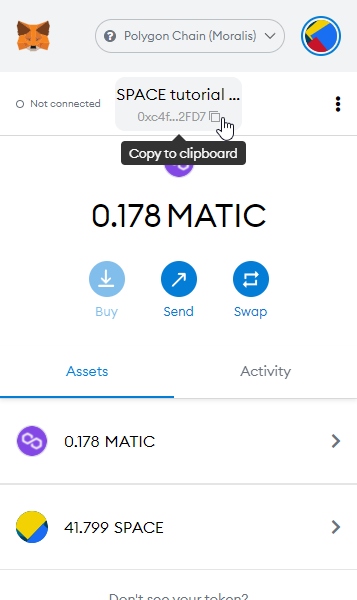
<figure><img src="https://180242877-files.gitbook.io/~/files/v0/b/gitbook-x-prod.appspot.com/o/spaces%2FJvtfR7L0PJEmCLLFDuzx%2Fuploads%2FanGiiJ46J60oW5EF1Zla%2Fwithdraw-metamask-copy-address.png?alt=media" alt="Copying the deposit address in MetaMask" width="250"><figcaption><p>The same step in MetaMask.</p></figcaption></figure>

#### B. Paste it on Final Autoclaim

Go to the Final Autoclaim [addresses linking page](https://autofaucet.dutchycorp.space/addresses_update.php). Paste your address in the **SPACE** input, then scroll down and click the **UPDATE** button.

<figure><img src="https://180242877-files.gitbook.io/~/files/v0/b/gitbook-x-prod.appspot.com/o/spaces%2FJvtfR7L0PJEmCLLFDuzx%2Fuploads%2FkXmBH0jCiEe0Kf8sguKu%2Fwithdraw-space-address-input.png?alt=media" alt="The SPACE address input on the Final Autoclaim addresses page"><figcaption><p>Enter your address in the <strong>SPACE</strong> address input.</p></figcaption></figure>

<figure><img src="https://180242877-files.gitbook.io/~/files/v0/b/gitbook-x-prod.appspot.com/o/spaces%2FJvtfR7L0PJEmCLLFDuzx%2Fuploads%2FVb7R8eg6dWKf3pSYdMl9%2Fwithdraw-update-button.png?alt=media" alt="The UPDATE button at the bottom of the addresses page"><figcaption><p>Click the <strong>UPDATE</strong> button.</p></figcaption></figure>

#### C. Confirm by email

Check your mailbox: you must have received a confirmation mail to validate your address change. After clicking the confirmation link in the mail, you get this message.

<figure><img src="https://180242877-files.gitbook.io/~/files/v0/b/gitbook-x-prod.appspot.com/o/spaces%2FJvtfR7L0PJEmCLLFDuzx%2Fuploads%2FoXdHemmV6CSDW8OQ4Jef%2Fwithdraw-address-confirmed.png?alt=media" alt="The confirmation message shown after validating the address change"><figcaption><p>Your address change is confirmed.</p></figcaption></figure>

### 2. Withdraw your SPACE

#### A. Open your balance page

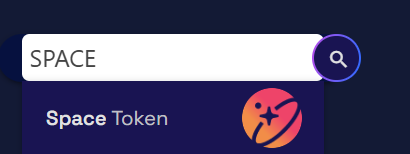
Go to the Final Autoclaim [balance page](https://autofaucet.dutchycorp.space/your_balance.php), open the search box and search for **SPACE**.

<figure><img src="https://180242877-files.gitbook.io/~/files/v0/b/gitbook-x-prod.appspot.com/o/spaces%2FJvtfR7L0PJEmCLLFDuzx%2Fuploads%2Fyiijp9Kx1mHHRieClEkP%2Fwithdraw-open-search.png?alt=media" alt="The search box on the Final Autoclaim balance page"><figcaption><p>Open the search box.</p></figcaption></figure>

<figure><img src="https://180242877-files.gitbook.io/~/files/v0/b/gitbook-x-prod.appspot.com/o/spaces%2FJvtfR7L0PJEmCLLFDuzx%2Fuploads%2Fq1DhP3jbK0ldNTTR1PNQ%2Fwithdraw-search-space.png?alt=media" alt="Searching for SPACE in the balance search box"><figcaption><p>Search for <strong>SPACE</strong>.</p></figcaption></figure>

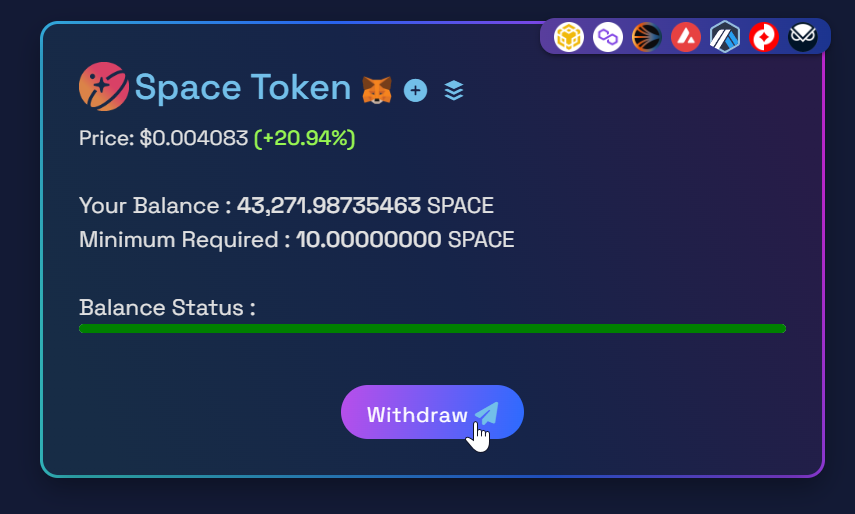
You now see your SPACE internal balance. Click the **Withdraw** button.

<figure><img src="https://180242877-files.gitbook.io/~/files/v0/b/gitbook-x-prod.appspot.com/o/spaces%2FJvtfR7L0PJEmCLLFDuzx%2Fuploads%2FAaQgDnApkMSpuxXQ523A%2Fwithdraw-button.png?alt=media" alt="The SPACE internal balance with its Withdraw button"><figcaption><p>Click the <strong>Withdraw</strong> button.</p></figcaption></figure>

#### B. Choose the withdrawal network

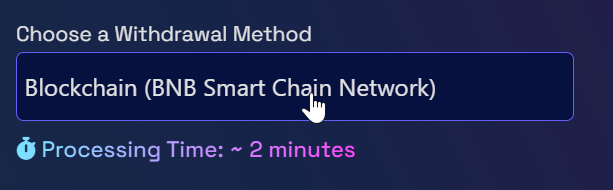
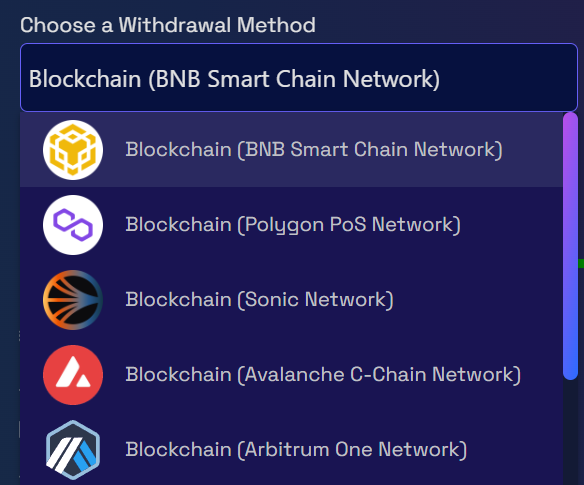
The withdrawal method defaults to **BNB Smart Chain**. Click it to pick another network.

<figure><img src="https://180242877-files.gitbook.io/~/files/v0/b/gitbook-x-prod.appspot.com/o/spaces%2FJvtfR7L0PJEmCLLFDuzx%2Fuploads%2FRcKoKXO8z91G2cnfdVXk%2Fwithdraw-change-method.png?alt=media" alt="The withdrawal method selector on Final Autoclaim"><figcaption><p>Click here to change the withdrawal method.</p></figcaption></figure>

<figure><img src="https://180242877-files.gitbook.io/~/files/v0/b/gitbook-x-prod.appspot.com/o/spaces%2FJvtfR7L0PJEmCLLFDuzx%2Fuploads%2FXFwDAFx5fePLtjKmCyHW%2Fwithdraw-select-network.png?alt=media" alt="The list of networks available as a withdrawal method"><figcaption><p>Select the network that you prefer.</p></figcaption></figure>

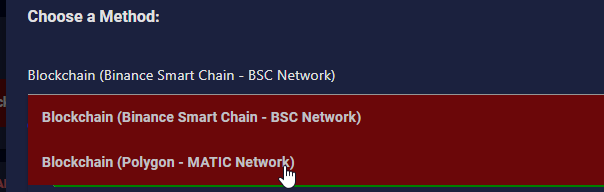
<figure><img src="https://180242877-files.gitbook.io/~/files/v0/b/gitbook-x-prod.appspot.com/o/spaces%2FJvtfR7L0PJEmCLLFDuzx%2Fuploads%2F0vutv6aDp9Eq18LiZ8eF%2Fwithdraw-select-polygon.png?alt=media" alt="Selecting the Polygon network as the withdrawal method"><figcaption><p>Selecting <strong>Polygon</strong> as the withdrawal method.</p></figcaption></figure>

{% hint style="warning" %}
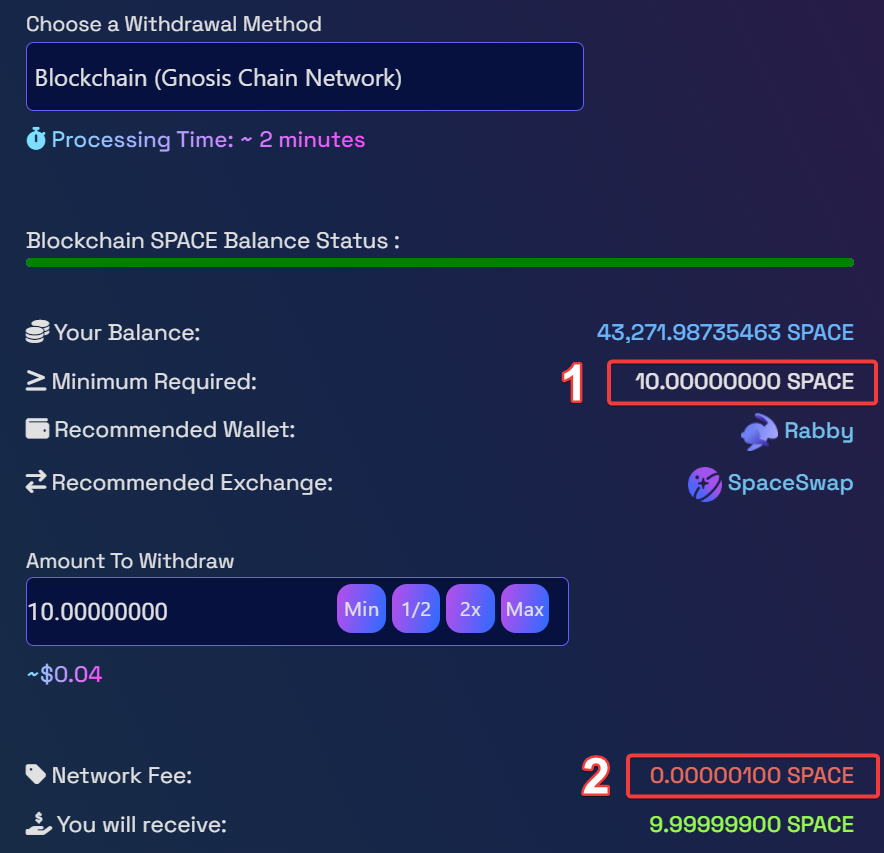
Every network supported by SPACE works with any EVM wallet, but the **minimum required to withdraw** and the **withdrawal fee** differ from one network to another. Pick a cheap network to keep more of your SPACE.
{% endhint %}

For example, on Gnosis Chain the minimum and the fee are both very low.

<figure><img src="https://180242877-files.gitbook.io/~/files/v0/b/gitbook-x-prod.appspot.com/o/spaces%2FJvtfR7L0PJEmCLLFDuzx%2Fuploads%2Fw9RhWRpBByGYaXmI2Fqc%2Fwithdraw-gnosis-fees.png?alt=media" alt="The minimum and fee displayed for a withdrawal on Gnosis Chain"><figcaption><p>The minimum required and the fee, shown for Gnosis Chain.</p></figcaption></figure>

#### C. Enter the amount and request the payment

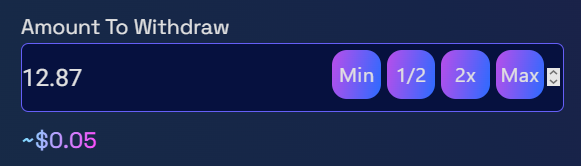
Edit the amount that you want to withdraw.

<figure><img src="https://180242877-files.gitbook.io/~/files/v0/b/gitbook-x-prod.appspot.com/o/spaces%2FJvtfR7L0PJEmCLLFDuzx%2Fuploads%2FKs8YSxSUSG0fVaPWtXG3%2Fwithdraw-amount.png?alt=media" alt="The withdrawal amount field"><figcaption><p>In this example we withdraw 12.87 SPACE on Gnosis Chain.</p></figcaption></figure>

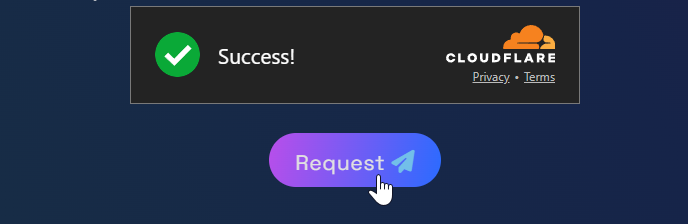
Pass the captcha, then click the **Request** button.

<figure><img src="https://180242877-files.gitbook.io/~/files/v0/b/gitbook-x-prod.appspot.com/o/spaces%2FJvtfR7L0PJEmCLLFDuzx%2Fuploads%2FbGZkVHb3aD1idpRhWmF5%2Fwithdraw-captcha-request.png?alt=media" alt="The captcha and the Request button on the withdrawal form"><figcaption><p>Pass the captcha, then request the payment.</p></figcaption></figure>

### 3. Check that you received it

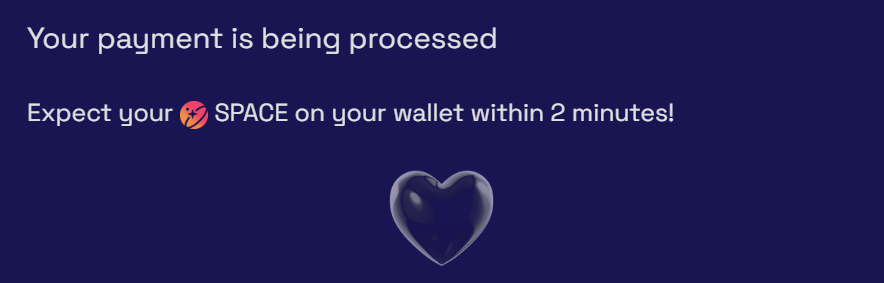
Done! It takes a few minutes before your SPACE reaches your wallet — around 2 minutes on Gnosis Chain, and up to 5 minutes depending on the network.

<figure><img src="https://180242877-files.gitbook.io/~/files/v0/b/gitbook-x-prod.appspot.com/o/spaces%2FJvtfR7L0PJEmCLLFDuzx%2Fuploads%2FP5yAQHR1M7qpaOpFnqDW%2Fwithdraw-request-confirmed.png?alt=media" alt="The confirmation shown after requesting the payment"><figcaption><p>You must see this confirmation after requesting your payment.</p></figcaption></figure>

<figure><img src="https://180242877-files.gitbook.io/~/files/v0/b/gitbook-x-prod.appspot.com/o/spaces%2FJvtfR7L0PJEmCLLFDuzx%2Fuploads%2FAMANmla9uIjb7t7Uxljw%2Fwithdraw-payment-sent.png?alt=media" alt="The payment marked as sent on Final Autoclaim"><figcaption><p>The payment is sent.</p></figcaption></figure>

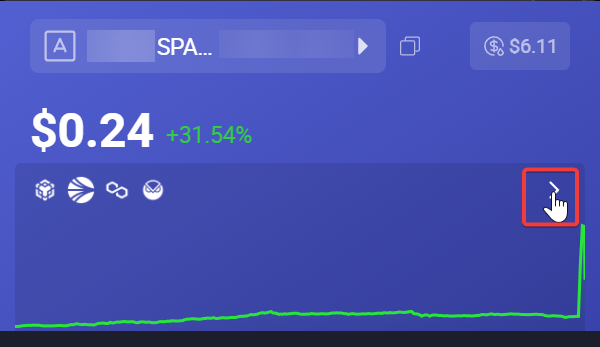
Open your wallet and click the arrow icon to see your balance.

<figure><img src="https://180242877-files.gitbook.io/~/files/v0/b/gitbook-x-prod.appspot.com/o/spaces%2FJvtfR7L0PJEmCLLFDuzx%2Fuploads%2FhN69vNJXxpz7t7dJPM3Q%2Fwithdraw-rabby-open-balance.png?alt=media" alt="Opening the wallet balance in Rabby"><figcaption><p>Click the arrow icon to see your wallet balance.</p></figcaption></figure>

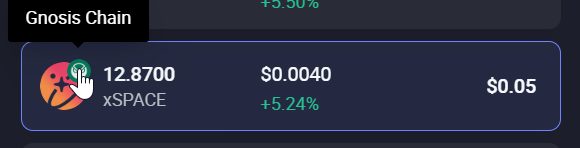
<figure><img src="https://180242877-files.gitbook.io/~/files/v0/b/gitbook-x-prod.appspot.com/o/spaces%2FJvtfR7L0PJEmCLLFDuzx%2Fuploads%2FdcsYgO3qVuFG15RREeV9%2Fwithdraw-rabby-received.png?alt=media" alt="The received SPACE shown in the Rabby wallet"><figcaption><p>The 12.87 SPACE arrived on Gnosis Chain.</p></figcaption></figure>

{% hint style="success" %}
SPACE not showing up in your wallet? The tokens are there — only the display is missing. See [How to display SPACE in your wallet?](/tutorials/how-to-buy-space-token/how-to-display-space-in-your-wallet.md)
{% endhint %}