> For the complete documentation index, see [llms.txt](https://docs.spacetoken.tech/llms.txt). Markdown versions of documentation pages are available by appending `.md` to page URLs; this page is available as [Markdown](https://docs.spacetoken.tech/tutorials/how-to-buy-space-token/how-to-display-space-in-your-wallet.md).

# How to display SPACE in your wallet?

Your SPACE belongs to your wallet address as soon as the transaction confirms. If you cannot see it, only the **display** is missing — nothing is lost. This page shows how to make SPACE visible in **MetaMask** and in **Trust Wallet**.

{% hint style="info" %}
Adding a token never moves your funds. It only tells your wallet which contract to watch.
{% endhint %}

### Does your wallet find SPACE on its own?

<table><thead><tr><th width="170">Wallet</th><th>What it does</th></tr></thead><tbody><tr><td><strong>MetaMask</strong></td><td>Finds SPACE by itself on most networks, once <strong>Autodetect tokens</strong> is on. Gnosis and Sonic still need a manual import.</td></tr><tr><td><strong>Trust Wallet</strong></td><td>Never finds SPACE by itself. You import it by hand on every network.</td></tr></tbody></table>

### MetaMask

#### Check the Autodetect tokens setting

Open **Settings**, then **Assets**, and look at **Autodetect tokens**.

* Wallets created recently have it **on** by default.
* Older wallets have it **off** until you switch it on yourself.

<figure><img src="https://180242877-files.gitbook.io/~/files/v0/b/gitbook-x-prod.appspot.com/o/spaces%2FJvtfR7L0PJEmCLLFDuzx%2Fuploads%2Fyb6gSCrmHy5I2dJZWF8D%2Fimage.png?alt=media&#x26;token=d893400b-b06d-4cc1-81d0-f1154c6ed7b4" alt="The Autodetect tokens toggle in the MetaMask Assets settings"><figcaption><p>Check that <strong>Autodetect tokens</strong> is on, under <strong>Settings → Assets</strong>.</p></figcaption></figure>

With the setting on, SPACE appears by itself on **Ethereum**, **BNB Smart Chain**, **Polygon**, **Arbitrum**, **Optimism**, **Base** and **Avalanche**, shortly after your balance arrives.

{% hint style="warning" %}
Autodetection does not cover **Gnosis** and **Sonic**. On these two networks, import SPACE by hand with the steps below.
{% endhint %}

#### Import SPACE by hand

1. Switch MetaMask to the network your SPACE is on.
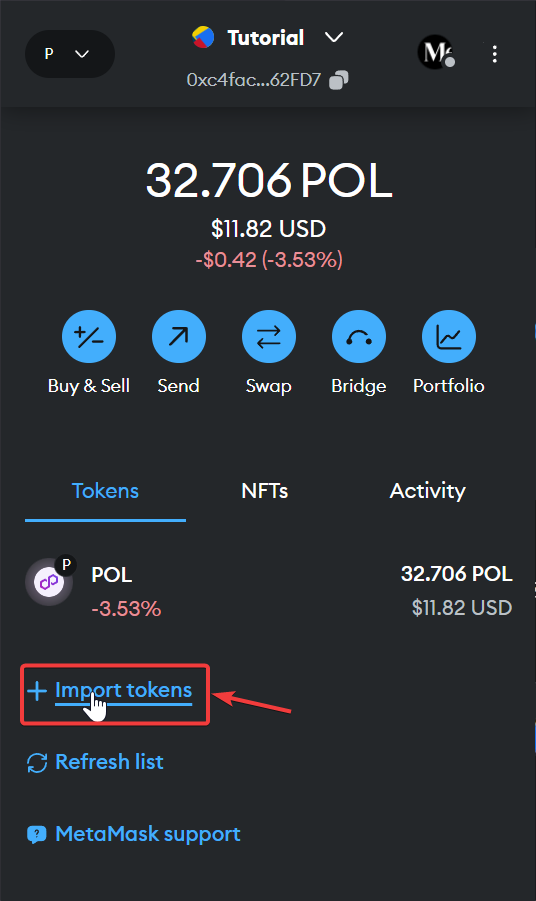
2. Open the **Tokens** tab and click **Import tokens**, below your assets.

<figure><img src="https://180242877-files.gitbook.io/~/files/v0/b/gitbook-x-prod.appspot.com/o/spaces%2FJvtfR7L0PJEmCLLFDuzx%2Fuploads%2FcQIUUI1x0Kv1zo39U3Tc%2Fwallet-metamask-import-tokens-link.png?alt=media" alt="The Import tokens link under the token list in MetaMask"><figcaption><p>Click <strong>Import tokens</strong>, below your assets.</p></figcaption></figure>

3. Open the **Custom token** tab.
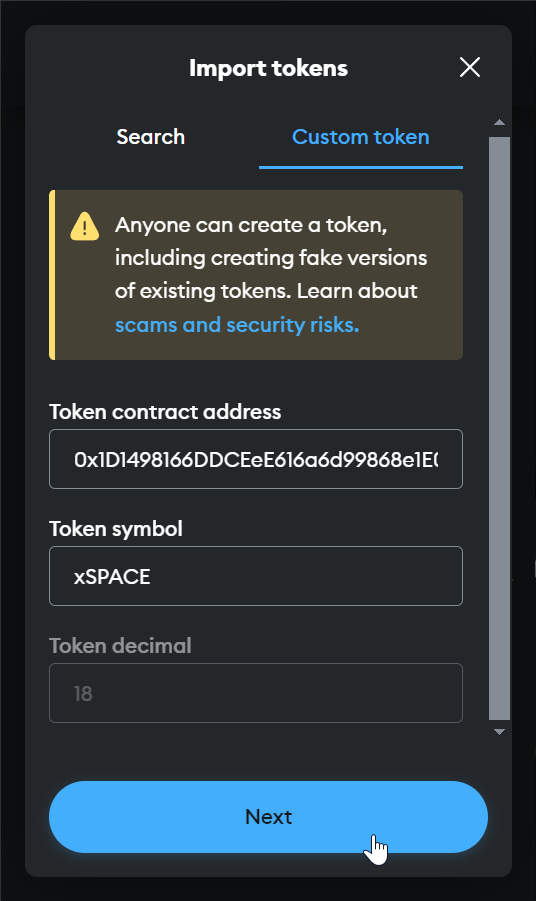
4. Paste the contract address for that network into **Token contract address**, taken from the table below. **Token symbol** and **Token decimal** fill in by themselves.

<figure><img src="https://180242877-files.gitbook.io/~/files/v0/b/gitbook-x-prod.appspot.com/o/spaces%2FJvtfR7L0PJEmCLLFDuzx%2Fuploads%2Fz8D0KgxFNBMg7D3Jhya5%2Fwallet-metamask-custom-token-form.png?alt=media" alt="The MetaMask Custom token form with a SPACE contract address pasted in"><figcaption><p>Paste the contract address, then check the symbol and the decimals.</p></figcaption></figure>

5. Click **Next**, then **Import**.

{% hint style="warning" %}
On Ethereum, Gnosis, Optimism and Polygon, some token lists show the symbol **SPACE** while our contract table calls it **xSPACE**. Search by contract address rather than by symbol.
{% endhint %}

### Trust Wallet

Trust Wallet only displays tokens from its own curated list, and SPACE is not on that list. You have to import SPACE by hand on **every** network.

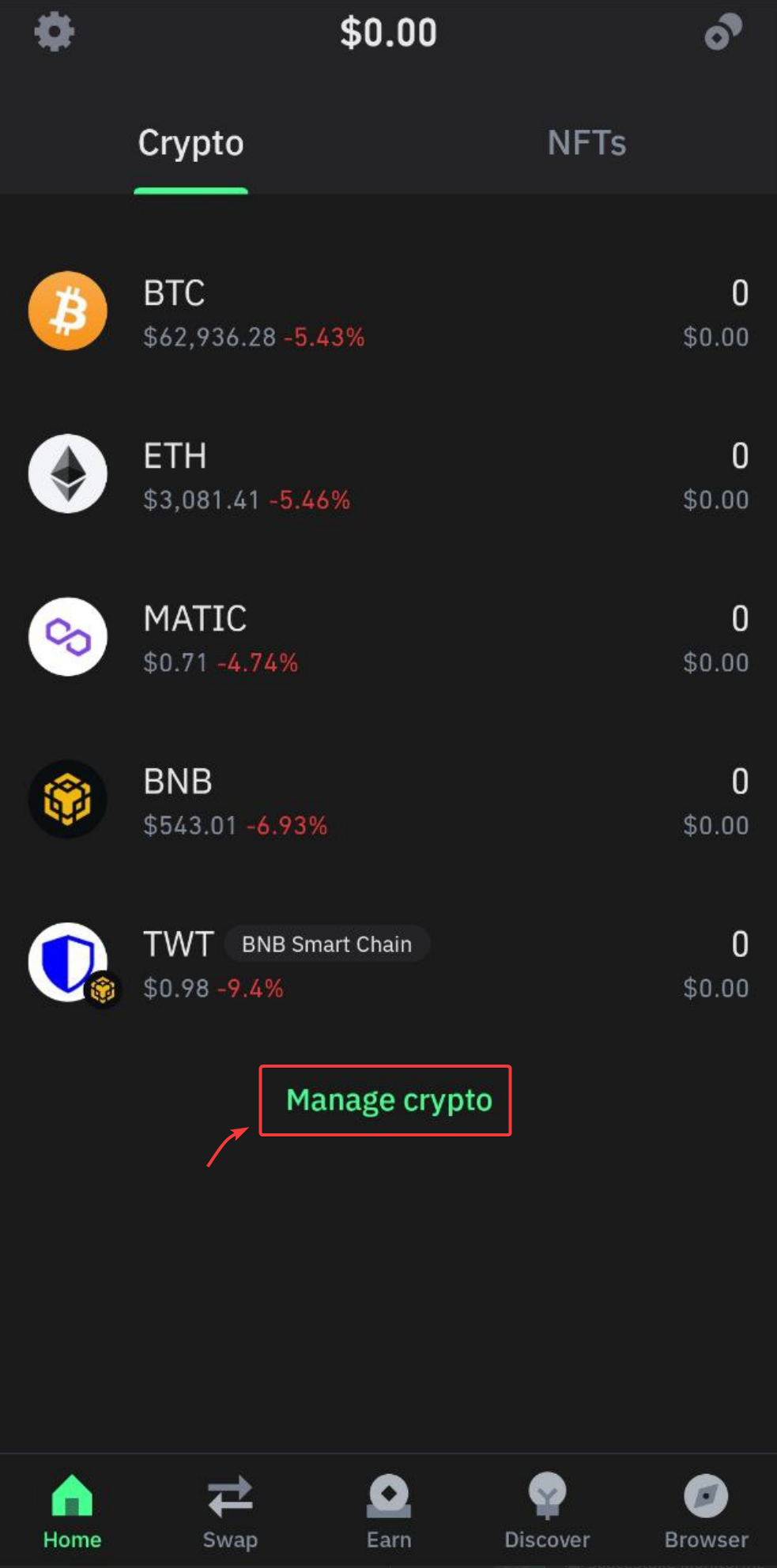
1. Open Trust Wallet, scroll to the bottom of your crypto list and tap **Manage crypto**.

<figure><img src="https://180242877-files.gitbook.io/~/files/v0/b/gitbook-x-prod.appspot.com/o/spaces%2FJvtfR7L0PJEmCLLFDuzx%2Fuploads%2FNOMgRotCMPeqwUowKvP9%2Fwallet-trustwallet-manage-crypto.png?alt=media" alt="The Manage crypto button at the bottom of the Trust Wallet asset list" width="300"><figcaption><p>Scroll down and tap <strong>Manage crypto</strong>.</p></figcaption></figure>

2. Tap the **+** button in the top right corner. The **Import crypto** screen opens.
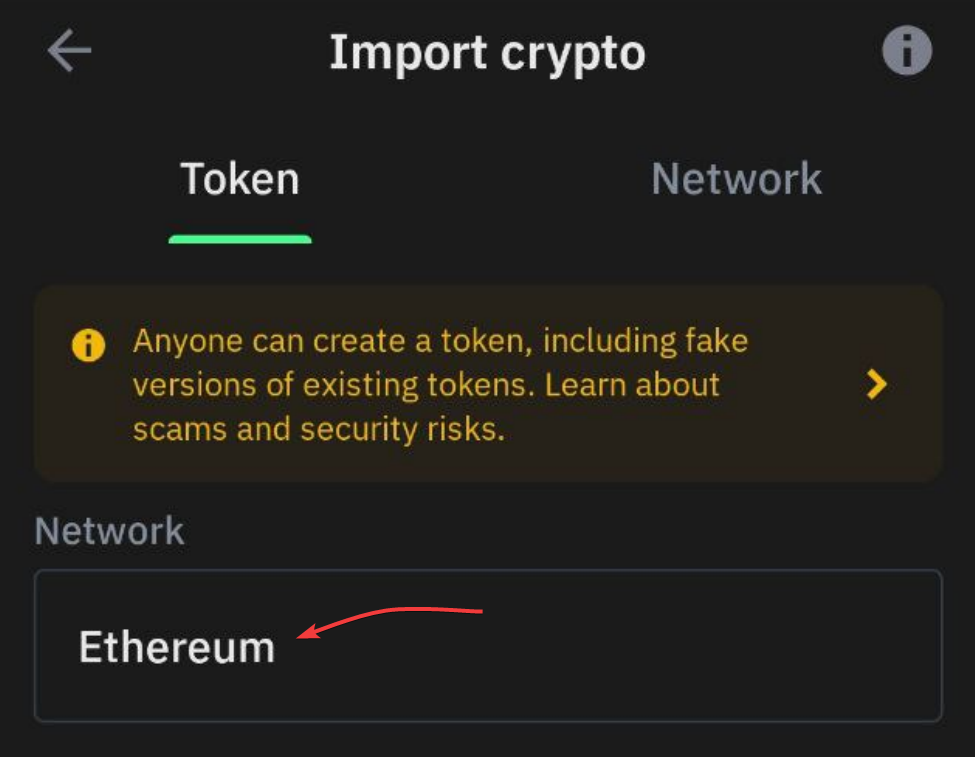
3. The **Network** field is set to **Ethereum** by default. Tap it to change it.

<figure><img src="https://180242877-files.gitbook.io/~/files/v0/b/gitbook-x-prod.appspot.com/o/spaces%2FJvtfR7L0PJEmCLLFDuzx%2Fuploads%2FOKK45tJIaGeWAnNAUJw7%2Fwallet-trustwallet-network-defaults-ethereum.png?alt=media" alt="The Import crypto screen in Trust Wallet, with the Network field showing Ethereum"><figcaption><p><strong>Ethereum</strong> is selected by default. Tap it to pick another network.</p></figcaption></figure>

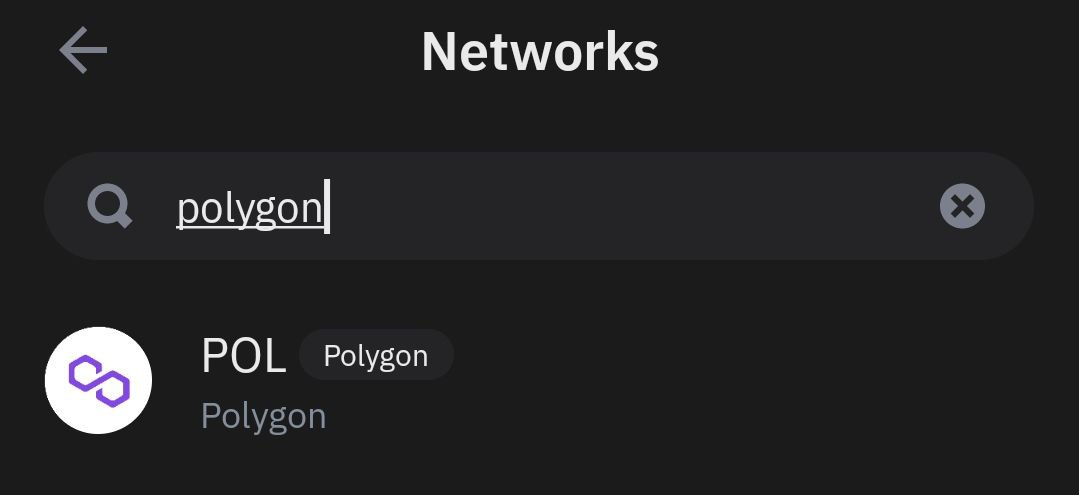
4. Search for the network your SPACE is on, then select it.

<figure><img src="https://180242877-files.gitbook.io/~/files/v0/b/gitbook-x-prod.appspot.com/o/spaces%2FJvtfR7L0PJEmCLLFDuzx%2Fuploads%2FfhEuLwkoX3hscph6pNxZ%2Fwallet-trustwallet-network-picker.png?alt=media" alt="Searching for the Polygon network in the Trust Wallet network picker"><figcaption><p>Search the network by name, then select it. Polygon is shown here as an example.</p></figcaption></figure>

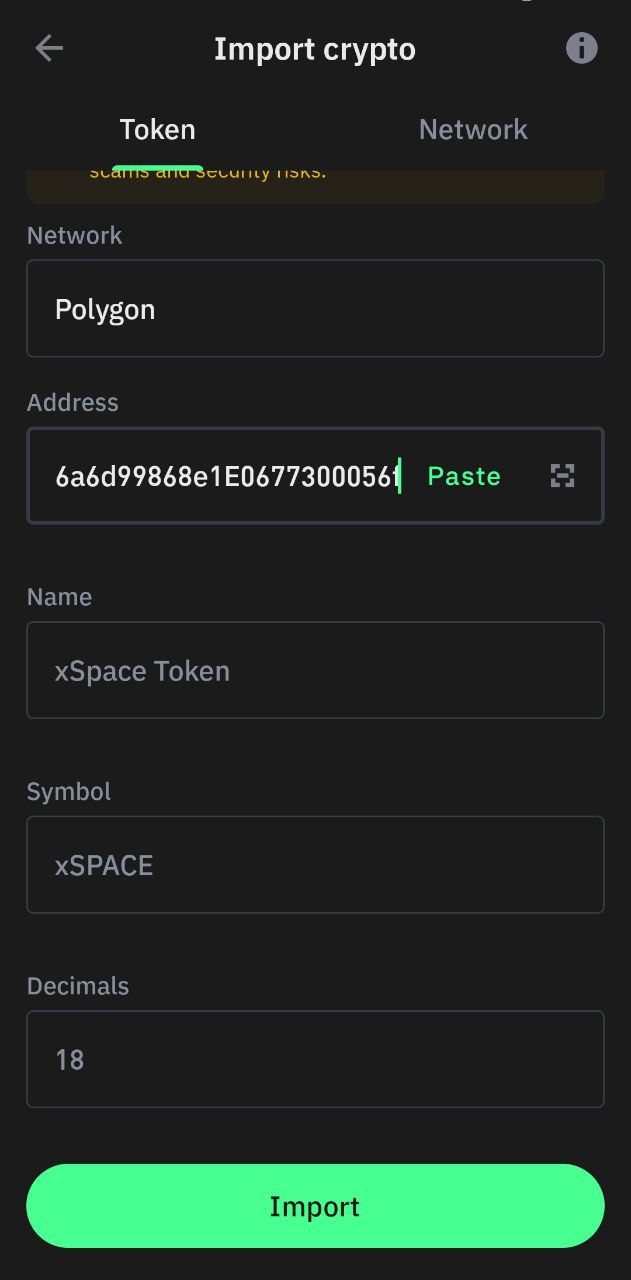
5. Fill in the form, then tap **Import**:

* **Address** — the contract address for that network, taken from the table below.
* **Name** — `xSpace Token`, or `Space Token` on BNB Smart Chain.
* **Symbol** — the symbol shown for that network in the table below: `xSPACE`, or `SPACE` on BNB Smart Chain.
* **Decimals** — `18`.

<figure><img src="https://180242877-files.gitbook.io/~/files/v0/b/gitbook-x-prod.appspot.com/o/spaces%2FJvtfR7L0PJEmCLLFDuzx%2Fuploads%2FWCoShYJWnCrmXG1V6z4v%2Fwallet-trustwallet-import-form.png?alt=media" alt="The completed Trust Wallet import form with address, name, symbol and decimals" width="300"><figcaption><p>Fill in the four fields, then tap <strong>Import</strong>. Polygon is shown here as an example.</p></figcaption></figure>

{% hint style="info" %}
Trust Wallet does not fill these fields for you. Type them yourself, and take the address and the symbol from the table below.
{% endhint %}

### Contract addresses

Use the address of the network your SPACE is on. All of them use **18 decimals**.

<table data-header-hidden><thead><tr><th width="155"></th><th></th><th></th><th></th></tr></thead><tbody><tr><td>Network</td><td>Contract Address</td><td>Symbol</td><td>Decimals</td></tr><tr><td>BNB Smart Chain</td><td><a href="https://bscscan.com/token/0x9e1170c12fddd3b00fec42ddf4c942565d9be577">0x9e1170c12fddd3b00fec42ddf4c942565d9be577</a></td><td>SPACE</td><td>18</td></tr><tr><td>Polygon</td><td><a href="https://polygonscan.com/token/0x1D1498166DDCEeE616a6d99868e1E0677300056f">0x1D1498166DDCEeE616a6d99868e1E0677300056f</a></td><td>xSPACE</td><td>18</td></tr><tr><td>Optimism</td><td><a href="https://optimistic.etherscan.io/token/0x1D1498166DDCEeE616a6d99868e1E0677300056f">0x1D1498166DDCEeE616a6d99868e1E0677300056f</a></td><td>xSPACE</td><td>18</td></tr><tr><td>Arbitrum One</td><td><a href="https://arbiscan.io/token/0x1d1498166ddceee616a6d99868e1e0677300056f">0x1D1498166DDCEeE616a6d99868e1E0677300056f</a></td><td>xSPACE</td><td>18</td></tr><tr><td>Avalanche</td><td><a href="https://snowscan.xyz/token/0x841aef70237a88027ccb2d15c1bbaf88a669674a">0x841aef70237a88027ccb2d15c1bbaf88a669674a</a></td><td>xSPACE</td><td>18</td></tr><tr><td>Sonic</td><td><a href="https://sonicscan.org/token/0x841aef70237a88027ccb2d15c1bbaf88a669674a">0x841aef70237a88027ccb2d15c1bbaf88a669674a</a></td><td>xSPACE</td><td>18</td></tr><tr><td>Gnosis</td><td><a href="https://gnosisscan.io/token/0x1D1498166DDCEeE616a6d99868e1E0677300056f">0x1D1498166DDCEeE616a6d99868e1E0677300056f</a></td><td>xSPACE</td><td>18</td></tr><tr><td>Ethereum</td><td><a href="https://etherscan.io/token/0x1D1498166DDCEeE616a6d99868e1E0677300056f">0x1D1498166DDCEeE616a6d99868e1E0677300056f</a></td><td>xSPACE</td><td>18</td></tr><tr><td>Base</td><td><a href="https://basescan.org/token/0x588aC26F61d5aEDCB3A2E903e65da5F5F95CaB24#code">0x588aC26F61d5aEDCB3A2E903e65da5F5F95CaB24</a></td><td>xSPACE</td><td>18</td></tr></tbody></table>

{% hint style="success" %}
Now that your SPACE is visible, you can put it to work: [How to Add Liquidity ?](/tutorials/how-to-add-liquidity.md)
{% endhint %}